Texts from Cade
Last updated 28 October 2026
Cade is YourCadre’s software. If you use Cade at work, you can have it text you when a question is waiting for you, and you can text it back.
How you turn texts on
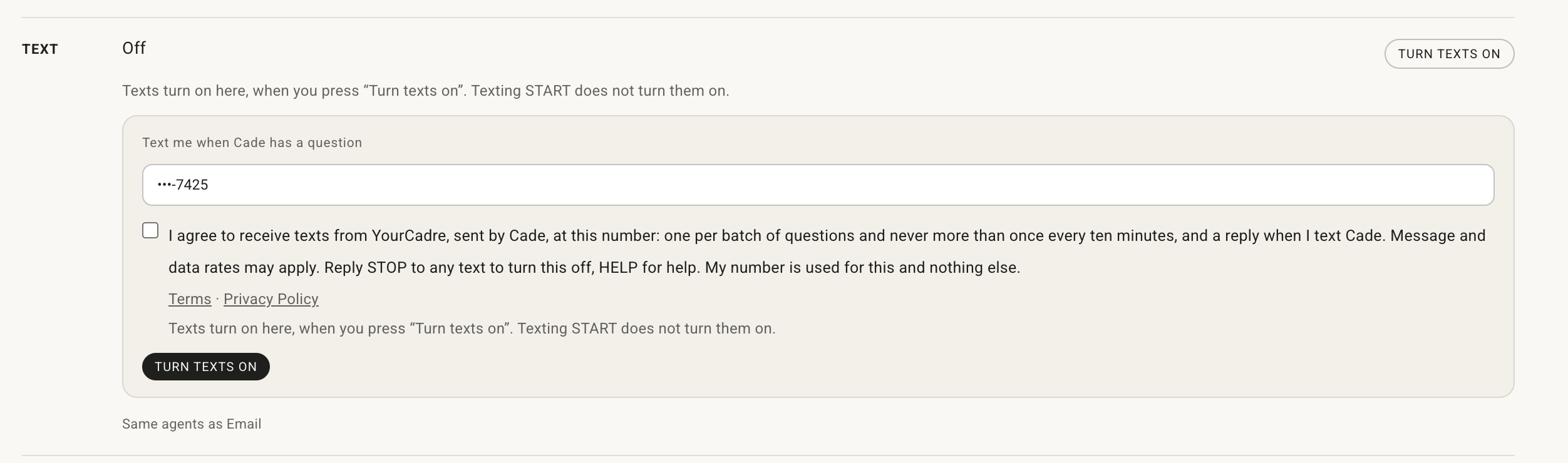
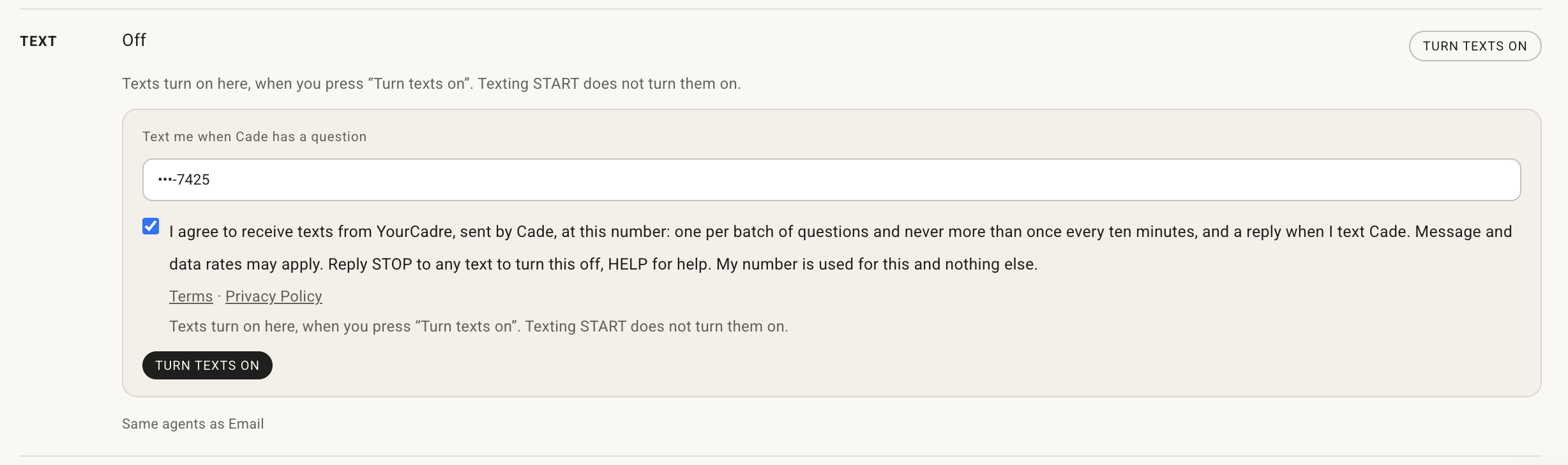
Sign in to app.yourcadre.ai, open Settings, and under Text press “Turn texts on”. Enter your mobile number and tick the box. The box is unticked until you tick it, and it is separate from accepting our Terms. Nobody can turn texts on for you, and texting START does not turn them on.
What the box says
“I agree to receive texts from YourCadre, sent by Cade, at this number: one per batch of questions and never more than once every ten minutes, and a reply when I text Cade. Message and data rates may apply. Reply STOP to any text to turn this off, HELP for help. My number is used for this and nothing else.”
A copy of the form as it appears in Settings. It does nothing here.

What you get
One text when a batch of questions is waiting for you, never more than once every ten minutes, with a link to the question. A reply when you text Cade. Message frequency varies with how much work your company’s Cade is doing. Message and data rates may apply.
Stopping
Reply STOP to any text, or turn texts off in Settings. You get one text confirming it and nothing more. Reply HELP for help, or email support@yourcadre.ai.
Your number
It is used for this and nothing else. No mobile information is shared with third parties or affiliates for marketing or promotional purposes, and your opt-in is never shared with anyone. Terms · Privacy Policy